How to Install Games on Laptop easy Beginner Guide
Have you ever wanted to play your favorite video games on your laptop but felt confused about where to start? You are not alone. Many people find the process of installing games a bit overwhelming at first. The good news is that once you understand the basics, it becomes super easy. In this guide, we will walk you through everything you need to know about installing games on your laptop. Whether you want to download free games, purchase premium titles, or install games from a disc, this article has got you covered.
Gaming on laptops has become incredibly popular over the past few years. Modern laptops are powerful enough to run many amazing games, from simple puzzle games to action-packed adventures. The best part is that you do not need to be a tech expert to get started. All you need is a laptop, an internet connection, and some patience. By the end of this article, you will feel confident installing any game you want.
Understanding Your Laptop’s Capabilities
Before you start downloading games, it is important to understand what your laptop can handle. Not all laptops are created equal. Some are designed for basic tasks like browsing the web and writing documents, while others are built specifically for gaming.
Checking Your System Specifications
Every game has something called “system requirements.” These are the minimum and recommended specifications your computer needs to run the game properly. To check your laptop’s specifications on Windows, follow these simple steps:
- Click on the Start menu at the bottom left corner of your screen
- Type “System Information” in the search bar
- Click on the System Information app
- Here you will see important details like your processor, RAM, and operating system
The most important specifications to look at include:
- Processor (CPU): This is the brain of your computer. Games usually require a certain processor speed to run smoothly.
- RAM (Memory): RAM helps your laptop run multiple programs at once. Most modern games need at least 8 GB of RAM.
- Graphics Card (GPU): This is what displays images on your screen. Gaming requires a decent graphics card for smooth visuals.
- Storage Space: Games can take up a lot of space. Some games need 50 GB or more of free storage.
Why System Requirements Matter
Imagine trying to fit a large puzzle into a small box. It just would not work, right? The same idea applies to games and laptops. If your laptop does not meet the minimum requirements, the game might not run at all. If it barely meets them, the game might run slowly or look choppy. This is why checking system requirements before downloading is so important.
Popular Platforms for Downloading Games
There are many websites and applications where you can download games. These platforms make it easy to browse, purchase, and install games with just a few clicks. Let us explore the most popular ones.
Steam gaming platform
Steam is the largest and most popular gaming platform in the world. It has thousands of games available, from big-budget titles to small indie games. Many games on Steam are affordable, and there are frequent sales where you can get games at huge discounts.
To use Steam, you need to create a free account. Once you have an account, you can browse the store, add games to your library, and download them directly to your laptop. Steam also has great features like achievements, cloud saves, and a built-in friend system.
Epic Games Store
Epic Games Store is another popular platform that has grown quickly in recent years. They are famous for giving away free games every week, which is awesome for budget-conscious gamers. The store has a clean interface and is easy to navigate.
Microsoft Store
If you are using a Windows laptop, the Microsoft Store is already installed on your computer. The Microsoft Store has many games available, including Xbox Game Studios titles. If you have an Xbox Game Pass subscription, you can access hundreds of games for a monthly fee.
GOG (Good Old Games)
GOG is a platform known for selling DRM-free games. This means you truly own the games you buy, and you can play them offline without any restrictions. GOG has a great collection of classic games as well as newer titles.
Origin and EA App
If you want to play games made by Electronic Arts (EA), like The Sims, FIFA, or Battlefield, you will need to use their platform called the EA App.
Step by Step Guide to Installing Games from Steam
Steam is the most common way people install games, so let us cover this in detail.
Step 1: Download and Install Steam Visit theSteam website at store.steampowered.com. Click on the green “Install Steam” button at the top right corner. Once the file downloads, open it and follow the installation instructions. It is a simple process that takes just a few minutes.
Step 2: Create an Account or Log In When you open Steam for the first time, you will be asked to create an account or log in. If you are new, click “Create a new account” and follow the prompts. You will need an email address and will create a username and password.
Step 3: Browse the Store Once you are logged in, click on “Store” at the top of the Steam window. Here you can search for specific games or browse different categories. You can filter games by genre, price, popularity, and more.
Step 4: Purchase or Add a Free Game When you find a game you want, click on it to see its page. Check the system requirements to make sure your laptop can run it. If everything looks good, click “Add to Cart” for paid games or “Play Game” for free games.
Step 5: Download and Install After purchasing, the game will appear in your Library. Click on “Library” at the top of the Steam window. Find your game in the list and click “Install.” Steam will ask you where to install the game and how much space it needs.
Step 6: Play Your Game Once the download is complete, click the “Play” button in your library. The game will launch, and you are ready to have fun!
Installing Games from Other Platforms
Installing from Epic Games Store
Go to the Epic Games website and download their launcher. Sign up for a free account using your email address. Check out the free games section where Epic Games offers free games every week. Go to your Library, find the game, and click “Install.”
Installing from Microsoft Store
Open the Microsoft Store from your Start menu. Search for the game you want. Click on the game and then click “Get” or “Buy.” The game will automatically download and install.
Installing from Physical Disc
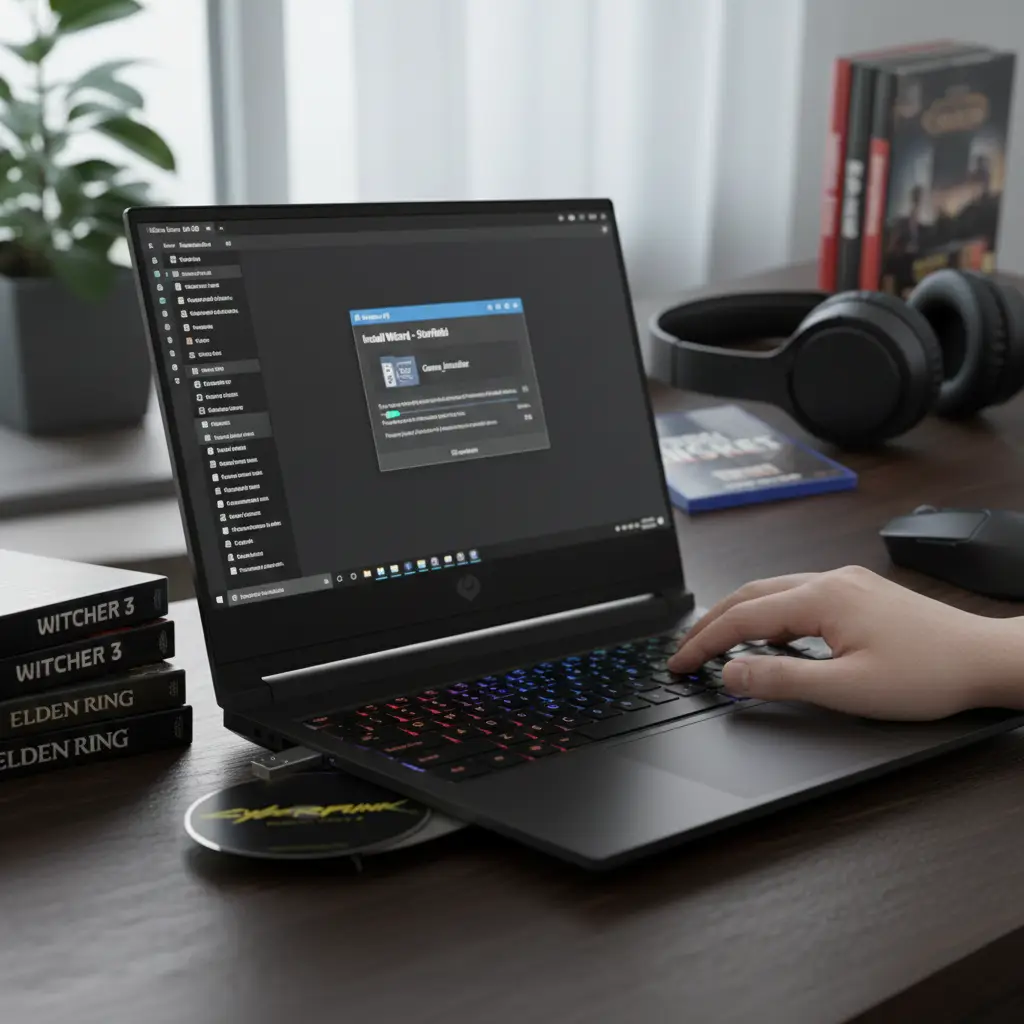
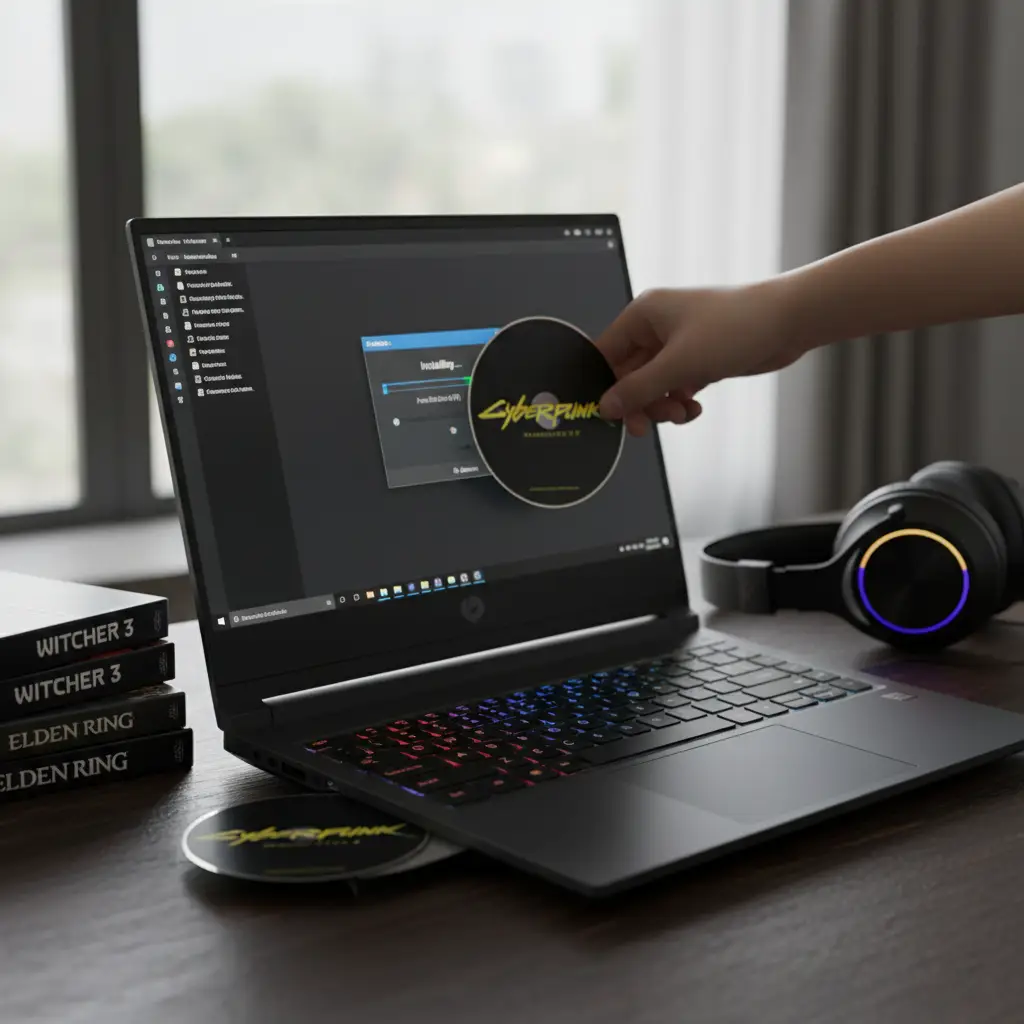
If your laptop has a disc drive, put the game disc into your laptop’s disc drive. An installation program will usually start automatically. Follow the on-screen instructions to install the game. Enter the product key printed on a card inside the game case when prompted.
Tips for a Smooth Installation Experience
Here are some helpful tips to make your game installation process easier and avoid common problems.
Keep Your Laptop Updated
Make sure your Windows operating system is up to date. Updates often include important fixes and improvements that help games run better. To check for updates, go to Settings, then Update & Security, and click “Check for updates.”
Update Your Graphics Drivers
Graphics drivers are special software that helps your graphics card work properly. Outdated drivers can cause games to crash or perform poorly. Visit the website of your graphics card manufacturer (NVIDIA, AMD, or Intel) to download the latest drivers.
Free Up Storage Space
Games can be huge. Before downloading a large game, make sure you have enough free space on your hard drive. You can free up space by deleting old files, uninstalling programs you do not use, or moving files to an external hard drive.
Use a Stable Internet Connection
A stable internet connection is crucial for downloading games. If possible, connect your laptop directly to your router with an ethernet cable for faster and more reliable downloads.
Be Patient with Large Downloads
Some games are 50 GB or even larger. On a typical internet connection, this could take several hours. Plan your downloads for times when you do not need to use your internet heavily, like overnight.
Troubleshooting Common Problems
Sometimes things do not go as planned. Here are solutions to common problems you might encounter.
Game Will Not Install
If a game refuses to install, first check that you have enough storage space. Also, make sure you are connected to the internet and that your antivirus software is not blocking the installation. Try restarting your laptop and attempting the installation again.
Game Crashes or Runs Slowly
This usually means your laptop does not meet the game’s requirements or your graphics drivers need updating. Try lowering the game’s graphics settings. You can usually find these options in the game’s settings menu under “Graphics” or “Display.”
Download Keeps Stopping
If your download keeps pausing or stopping, check your internet connection. Try pausing the download, waiting a few seconds, and resuming. Some platforms let you limit download speed to prevent connection issues.
Game Says It Is Not Activated
Make sure you entered the product key correctly if the game requires one. For digital purchases, verify that you are logged into the correct account.
Staying Safe While Downloading Games
Safety is super important when downloading games from the internet. Here are some tips to protect yourself and your laptop.
Only Download from Official Sources
Stick to official platforms like Steam, Epic Games Store, and the Microsoft Store. Avoid downloading games from random websites, as they might contain viruses or malware.
Be Careful with Free Game Offers
If a website offers expensive games for free, it is probably a scam. These “free” downloads often contain harmful software that can damage your laptop or steal your personal information.
Use Antivirus Software
Keep antivirus software installed and updated on your laptop. It will help protect you from malicious software and alert you if something seems suspicious.
Read Reviews Before Buying
Before purchasing a game, read reviews from other players. This helps you avoid games that are buggy, do not work properly, or are scams.
Free Games vs Paid Games
Understanding the difference between free and paid games can help you make better decisions.
Free-to-Play Games
Many popular games are completely free to download and play. Games like Fortnite, Apex Legends, Warframe, and Genshin Impact are examples. These games make money through optional purchases called microtransactions. You can enjoy the full game without spending any money.
Paid Games
Paid games require you to purchase them before you can play. The advantage is that you usually get the complete experience without being pushed to buy extra things. Paid games often go on sale, especially during holiday seasons on Steam and other platforms.
Subscription Services
Services like Xbox Game Pass and EA Play let you access many games for a monthly fee. This is a great option if you like trying different games without buying each one separately.
FAQS
How do I know if a specific game will actually run on my laptop?
Check the “System Requirements” on the game’s store page to see if your laptop has enough RAM and storage. You can find your own specs by searching “About your PC” in the Windows start menu to compare them.
Where is the safest place for me to download and install new games?
It is best to use well-known stores like Steam, the Epic Games Store, or the official Microsoft Store for your downloads. These platforms are safe, scan for viruses, and make it very easy to keep all your games updated automatically.
Why does it sometimes take such a long time for a game to finish installing?
Game files are often very large, so the speed depends on your internet connection and how fast your laptop can save data. To speed things up, try using a wired Ethernet cable and avoid downloading other big files at the same time.
Do I need to buy a special gaming mouse or controller to play on my laptop?
Most games work perfectly fine with a standard keyboard and mouse, so you do not have to buy extra gear immediately. However, many players find that a separate controller or gaming mouse makes playing action games much more comfortable.
What should I do if a game crashes or refuses to open after I install it?
Start by restarting your laptop to clear out memory errors and make sure your graphics drivers are fully updated. If that does not work, use the “Verify Files” option in your game store app to fix any missing data.
Conclusion
Installing games on your laptop is easier than you might think. Once you understand the basics, you can download and play any game you want. Remember to check your laptop’s specifications before buying a game, use trusted platforms like Steam and Epic Games Store, and keep your system and drivers updated for the best experience.
Gaming is a wonderful way to relax, have fun, and even connect with friends. Now that you know how to install games, a whole world of entertainment is waiting for you. Whether you enjoy action games, role-playing adventures, sports simulations, or puzzle games, there is something out there for everyone.
Take your time exploring different games and platforms. Do not be afraid to try new things and experiment with different genres. Most importantly, have fun! Happy gaming!
Want to explore more? Head over to Magzines